
This manual describes JMapper Mail 1.0 on iPhone, iPad and Mac. Labels are quoted as they appear in the English interface. On the Mac, settings live in the Tools & settings window (⌘,); on iPhone and iPad they are in the gear menu of the sidebar.
Requirements
- Devices: iPhone and iPad with iOS/iPadOS 17 or later, Mac with macOS 14 or later. The Control Center control needs iOS 18.
- Mail server: JMAP core and mail (RFC 8620, RFC 8621) over HTTPS.
- Sign-in: an OpenID Connect provider that offers Dynamic Client Registration (RFC 7591), PKCE with S256 and RS256-signed ID tokens, and accepts loopback redirects with a changing port (RFC 8252).
- Optional server features that JMapper uses when present: submission and sender identities, delayed sending, vacation response, Sieve, quotas, sharing and push.
IMAP, POP and password sign-in are intentionally not supported. Features your server does not offer are greyed out or hidden.
Getting started
Try the demo
On the sign-in screen, choose View Demo – No Account. JMapper opens with sample messages, tags, notes and follow-ups. No connection to any server is made and nothing can be sent. Tap Connect account in the demo banner when you are ready to sign in.
Connect your account
- Enter your Email address and, if you like, an Account description such as “Work”.
- Under Automatic setup, pick a Method and choose Discover configuration:
- PACC-03 with DNS digest sends only your mail domain. The configuration is fetched from
ua-auto-config.<domain>and must match a DNS TXT record; TLS 1.3 is required. - RFC 8620 / WebFinger tries the
_jmap._tcpSRV record and/.well-known/jmap, then asks WebFinger for the issuer. WebFinger receives your full address.
- PACC-03 with DNS digest sends only your mail domain. The configuration is fetched from
- Check the discovered issuer and JMAP URL and choose Apply verified endpoints. Nothing is changed until you do. You can also type the OIDC issuer and JMAP session URLs yourself; your provider can tell you both.
- Choose Sign in with OIDC. Your browser opens your provider's sign-in page. Sign in there, including any second factor. When the browser says “JMapper is completing sign-in”, you can close it.
The Advanced section lets administrators change the requested Scopes and an optional Resource. You normally leave both alone.
Several accounts
A profile is one sign-in. Add more with Add profile / sign in… (Mac: File menu; iPhone/iPad: sidebar). One profile can contain several JMAP accounts, for example shared or public ones. With more than one, the sidebar shows Accounts with a Connection and an Account picker.
The Default account (Settings → General) is used for new messages and at startup. Replies always use the account of the original message. Rename an account under Account & sender → Account description.
Signing in again
If your provider ends your session, a banner says “Your session has expired. Local messages and drafts are preserved.” Choose Sign in again and sign in as the same user. JMapper never opens the browser on its own, and network errors do not sign you out.
Signing out
Sign out is in the Mailbox menu on the Mac and in the gear menu on iPhone and iPad. It removes the tokens from the device; drafts on the server are kept.
Finding your way around
Mac
The Mac app uses a dark appearance. Under General → Window layout you choose Three columns (sidebar, list, message) or List above message. The status bar at the bottom shows the connection, current activity and sync progress; click the progress to pause or resume syncing. Expand reader shows only the message, and Esc brings the list back. Window → Activity (⌥⌘0) lists running server work.
iPhone and iPad
On iPhone you move from the mailboxes to the list to a message. The reader's bottom bar holds the format menu, dark reading mode, Organize, the previous/next arrows and the image menu. On iPad the split view adapts to the window width.
The sidebar
| Section | What it shows |
|---|---|
| Mailboxes | Inbox, Drafts, Sent, Archive, Junk and Trash, combined across your personal accounts with summed unread counts. |
| Favorites | Inbox, Drafts and Sent by default, plus All messages and Outbox (held and scheduled messages, if your server supports delayed sending). Drag to reorder. |
| Smart mailboxes | VIPs, Flagged, Unread, With attachments and your own saved searches. |
| Organize | Your tags, With note, Follow-up (orange when something is due) and active projects. |
| Sources | The complete folder tree of each account. Shared accounts get their own section. |
Every section can be collapsed. Right-click (Mac) or long-press (iPhone/iPad) a folder for Mark all as read, favorites, Manage folders… and, for Junk and Trash, Permanently empty folder….
Reading mail
The message list
Rows show an unread dot, flag, attachment, tag, note and follow-up markers. Choose how unread mail stands out under Reading & composing → Unread messages: Dot only, Bold or Bold and colored. Messages from VIPs can be highlighted in color. The unread filter in the toolbar shows only unread messages; Multiple selection lets you act on many messages at once.
Messages are marked as read immediately by default. Under General → Mark as read you can wait a few seconds or choose Never (manually only).
Conversations
Turn on Organize by Conversation in the reader menu (Mac: View menu) to group messages by their JMAP thread, including your sent replies. Show Most Recent Message at the Top controls the order. Conversations are grouped by the server's thread, never by subject alone.
HTML, text and Markdown
The format control in the reader switches a single message between Automatic, Text and HTML. Your general preference for messages that contain both is under Reading & composing. HTML is shown without scripts, forms, frames, external fonts or style sheets. Plain-text messages written in Markdown are shown formatted; Show Original Text switches back.
Dark reading mode darkens bright HTML mail. Find in message searches the open message.
Remote images
Remote images are blocked by default, because loading them can tell the sender that you opened the message. The image menu in the toolbar offers:
- Don't Load Images – nothing remote is loaded (default).
- Show Embedded Images Only – images sent inside the message are shown.
- Load All Images … – asks for confirmation, then loads remote images without cookies, referrer or mail tokens.
Your choice is remembered for all messages until you change it in the same menu.
Headers, source and links
Additional headers shows the full header set; Always shown headers lets you pin fields such as List-Id or Authentication-Results for every message. View RAW message (⌥⌘U) shows the source, and Export EML… saves it as a file. Clicking a link always asks before it opens.
Attachments
Attachments are listed with name and size; tap one to open or save it. Public OpenPGP keys attached by the sender can be added with Add OpenPGP key …. On the Mac you can drag a single message into Finder to save it as an .eml file.
Writing mail
Recipients, sender and format
Recipient fields complete addresses from your contacts and from people you have written to. The From: row lists your sender identities. Pick the Message format:
- Text – plain text.
- Markdown – write in Markdown, check it with Preview; it is sent as text plus formatted HTML.
- HTML – a rich editor with bold, italic, underline, links and inline images; a plain-text version is sent along.
The default for new messages and replies is under Reading & composing → New messages and replies.
Sender addresses and signatures
Manage identities under Account & sender → Senders & aliases. A new address must be permitted by your mail server; it creates a sender identity, not a new mailbox. Replies use the address the original message was sent to.
Create signatures under Contacts & signatures → Email signatures and choose a default per sender address, or use the signature stored with the server identity.
Sending, Undo Send and scheduling
Before a message leaves, JMapper shows a summary of recipients and subject. If your server supports delayed sending, every message is held for the time set under General → Undo Send (10 seconds by default) and you can take it back with Undo Send (⌘Z on the Mac). It returns to Drafts.
To send later, choose Send Later … on the Mac or long-press the send button on iPhone and iPad, then pick a preset or a time. Waiting messages are in Outbox; Cancel sending and edit brings one back. On iPhone, a Live Activity shows the countdown on the Lock Screen and in the Dynamic Island.
Drafts
Drafts are saved to the server automatically; ⌘S saves immediately. On iPhone and iPad, swipe the composer down to minimise it to a bar and continue later, just like in Apple Mail. With several minimised drafts, a stack lets you pick one. On the Mac, the composer is its own window.
Snippets
Insert a text snippet with the Snippet button (⌥⌘B) or type ;; followed by its abbreviation and a space. Snippets can contain the placeholders {Vorname}/{FirstName}, {Name}, {Datum}/{Date} and {Cursor}. Create them under Organize → Text snippets.
Attachments and encrypted ZIP
Attach files with Attach or by drag and drop. Images can be scaled down to small, medium or large before sending. Turn on Send as ZIP archive to pack all attachments, and Encrypt with password (AES-256) to protect the archive. JMapper can generate a strong password and copy it; it never stores it. Send the password by another channel. The macOS Archive Utility cannot open AES archives; recipients can use Keka, The Unarchiver, 7-Zip or WinZip.
Encryption and signatures
In the composer, choose the Method (OpenPGP / Autocrypt or S/MIME) and the Protection: Automatic Autocrypt, Sign and encrypt, Sign only or Unencrypted · unsigned. If a recipient's key is missing, JMapper does not quietly send in plain text; it tells you which keys are missing and offers to search for them.
OpenPGP and Autocrypt
Open Encryption → OpenPGP & Autocrypt.
- Your identity: Generate new key, or import an existing one under Import keys. Turn on Enable Autocrypt to share your key automatically in outgoing mail.
- Encrypt subject (on by default) replaces the visible subject of encrypted mail with “...”; the real subject travels inside the encrypted part.
- Search keys asks the recipient domain's Web Key Directory and keys.openpgp.org. Keys are only added after you confirm.
- Known keys lists every key with its origin and status. When a contact's key changes, JMapper warns you until you mark it Checked. You can pin a key to an independently verified fingerprint.
- Autocrypt device transfer moves your key to another device or Autocrypt-capable mail client using a setup message and a 36-digit code.
S/MIME
Open S/MIME certificates in the Tools menu or under Encryption. Import your personal certificate as .p12/.pfx and assign it to a sender. Recipient certificates are collected automatically from fully verified signed mail, or imported as .cer, .crt or PEM. You can confirm a certificate personally by comparing its SHA-256 fingerprint. Revocation is not checked online, and the reader says so.
Organizer: tags, notes, follow-ups, projects
The organizer adds information to your mail that stays with you: it is stored on your devices and, if enabled, synced end-to-end encrypted through your iCloud. It is never written to the mail server. Open it from the Organize menu (Mac), the tag button in the reader, or a message's context menu.
Tags
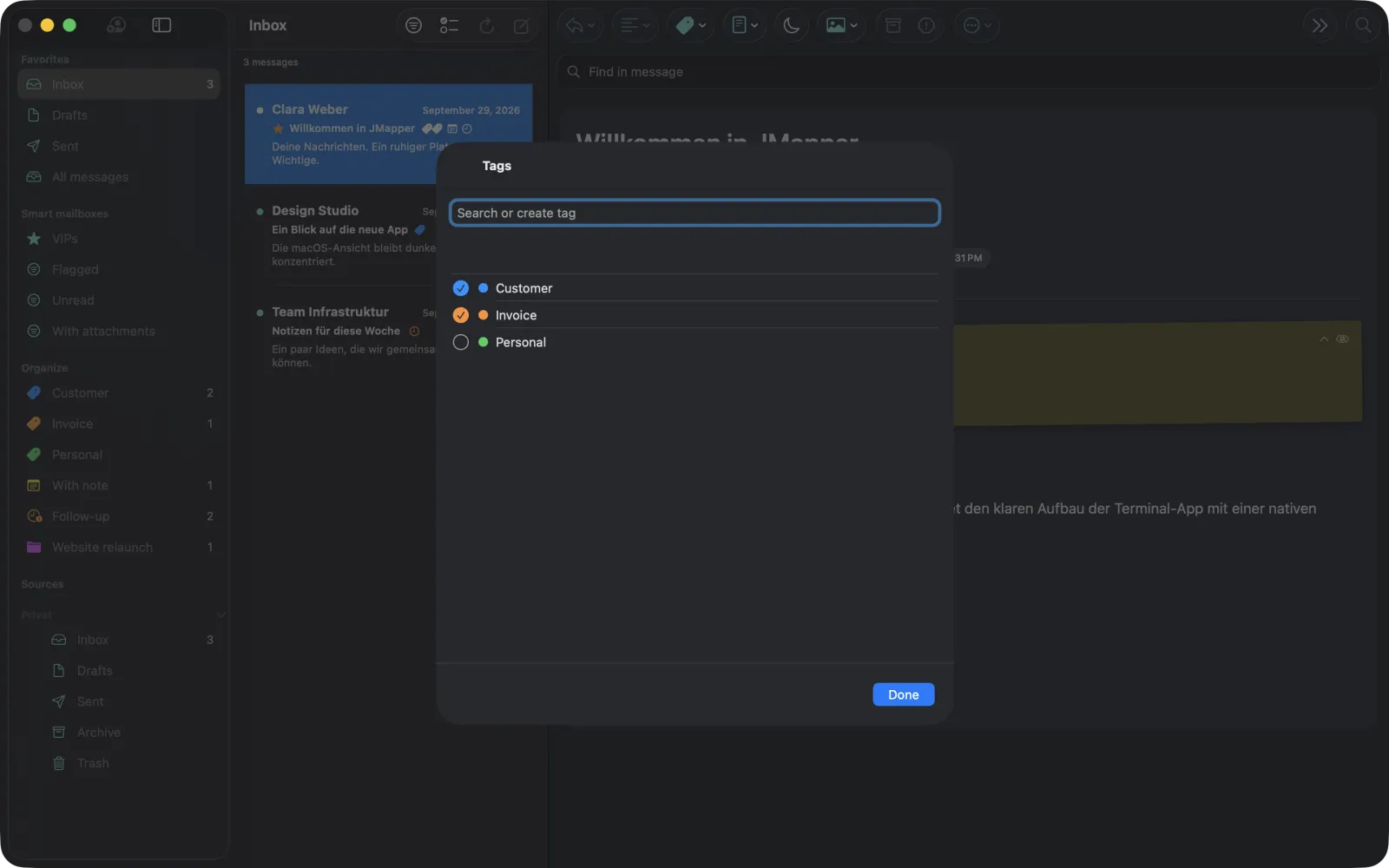
Type in Search or create tag to find or create a tag. JMapper suggests tags you used for the same sender. Under Organize → Tags you set the color, whether the tag appears in the sidebar, and whether replies inherit it.
Sticky notes
Add note … attaches a yellow note to a message; it appears under the header and in the With note list. If two devices change the same note, the other version is shown so you can attach or discard it.
Follow-ups
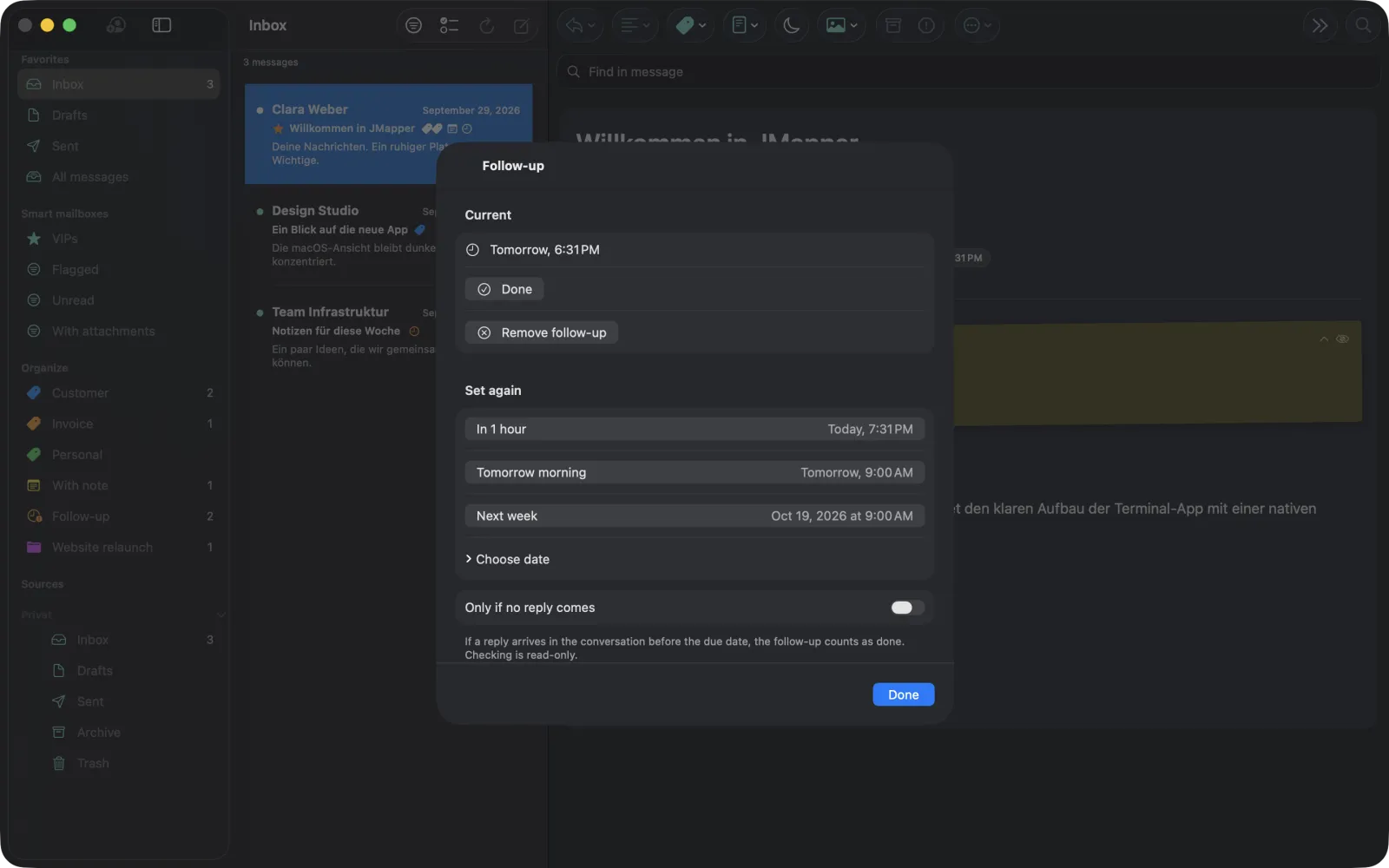
Choose Follow-up … and a time: in one hour, this evening, tomorrow morning, next week, or a date of your choice. With Only if no reply comes, the follow-up is completed automatically when a reply arrives in the conversation. JMapper checks this read-only and at most every ten minutes. Due follow-ups notify you and are highlighted in orange.
Projects
Put messages from any folder or account into a project. A message belongs to at most one project. Projects can have a color, a due date and a note, and can be marked done under Organize → Projects.
Rules for new mail
Under Organize → Rules, a rule matches the sender address, domain, subject or account and then adds tags or a project. Each rule acts once per message; a tag you removed is not added again. These rules run in the app. For rules that run on the server, use Sieve filters.
iCloud and backup
Organize → iCloud → Sync with iCloud is on by default. Turn it off to keep the organizer on this device only. Backup exports all organizer data to a JSON file and imports it again (merging, not replacing).
Search, smart mailboxes and VIPs
Type into the search field to search the current mailbox. Advanced users can enter a JMAP filter as JSON, for example {"from": "billing@example.com", "hasAttachment": true}.
Save searches as smart mailboxes with Manage smart mailboxes (Mac: Mailbox → Manage smart folders…). A smart mailbox can apply to all accounts of a profile or only to one folder; Use current search takes over what you just typed.
VIPs are senders you mark with a star in Contacts & VIPs or via Add sender to VIPs. Their messages collect in the VIPs mailbox. JMapper reads your contacts only after you allow it.
Shortcuts and gestures
Mac menu shortcuts
| Action | Shortcut |
|---|---|
| New message | ⌘N |
| Reply / Reply all / Forward | ⌘R / ⇧⌘R / ⇧⌘F |
| Send (in the composer) | ⇧⌘D |
| Save draft | ⌘S |
| Insert snippet / Markdown code block | ⌥⌘B / ⇧⌘K |
| Read / unread | ⇧⌘U |
| Flag | ⇧⌘L |
| Archive | ⇧⌘A |
| Synchronize | ⌘G |
| Tags / Project / Follow-up / Note | ⌥⌘T / ⌥⌘P / ⌥⌘W / ⌥⌘N |
| View RAW message | ⌥⌘U |
| Activity window | ⌥⌘0 |
| Tools & settings | ⌘, |
Single-key commands (Mac, message list focused)
| Key | Action | Key | Action |
|---|---|---|---|
| j / k | Next / previous message | a | Archive |
| c | New message | d | Move to Trash |
| r / R | Reply / Reply all | m / y | Move / Copy |
| f | Forward | t | Conversation as message list |
| e | Edit server draft | g | Synchronize |
| u | Read / unread | z | Pause / resume sync |
| * | Flag | F | Reader only |
| i | Smart folders | o | Manage folders |
| s | Tools & settings | Space | Toggle selection |
Swipe actions
Swipe right on a message for Read/Unread and Flag, left for Trash and Archive. Swipes are not available in smart mailboxes and conversation views, because their messages come from several folders. On iPhone, shake the device within five minutes to undo the last action.
Notifications, widgets and Shortcuts
Notifications
Under Notifications & sounds you turn on notifications for new mail, choose sounds and the app icon badge. Show sender and subject is off by default, so notifications do not reveal content on the Lock Screen unless you want them to.
On iPhone and iPad, Instant Notifications via Apple Push asks your mail server to notify the device immediately. The server encrypts each notification (RFC 8291) before it passes our push gateway and Apple's push service; neither can read it. Without push, Fetch in Background checks every 15, 30 or 60 minutes as iOS allows. On the Mac, notifications arrive while JMapper is running.
Widgets and system integration
- Inbox widget for the Home and Lock Screen with the unread count and latest senders. Sender and subject in widgets can be turned off.
- Quick actions on the app icon: New Mail, Inbox, Unread, VIPs.
- Control Center and Action button (iOS 18): New Email.
- Shortcuts and Siri: New Email (opens the composer, never sends by itself), Check for New Email, Count Unread Emails, Selected Emails, Email as File.
- AppleScript on the Mac: compose, check for new mail, unread count, selected messages, export.
- Handoff continues reading and writing on another device.
- Default mail app: on the Mac under General → Set as default mail app; on iPhone in the iOS settings for JMapper.
Server features
Folders and sharing
Folders & sharing → Manage folders creates, renames and deletes (empty) folders, assigns special roles and controls subscriptions. Permissions & sharing shows your rights on a folder and lets you share it with other users of your server. JMapper respects the rights the server reports and hides actions you are not allowed to perform.
Junk & Trash can delete old messages automatically after 7, 30 or 90 days; on the Mac also when you quit. This is off by default and asks for confirmation.
Vacation response
Under Rules & vacation response → Vacation response, enable an automatic reply with subject, text and an optional period.
Sieve filters
Sieve rules run on your server, even when no device is online. The visual Rules editor builds conditions on headers, addresses, size and date, and actions such as filing into a folder, redirecting, flagging, rejecting or discarding. Templates help with newsletters, invoices and forwarding. Switch to Source to edit the script directly, Validate syntax, and activate, import or export scripts.
Quotas
Your storage usage is shown at the bottom of the Mac sidebar and under Diagnostics & import → Show quotas.
Settings overview
| Category | Contents |
|---|---|
| General | Default mail app, default account, Undo Send, mark as read, language, window layout, pause sync, offline messages (Mac), clear message cache |
| Reading & composing | List style, HTML/text preference, compose format, Markdown, always shown headers |
| Contacts & signatures | Contacts & VIPs, collected recipients, email signatures |
| Organize | Tags, projects, text snippets, rules, iCloud, backup |
| Notifications & sounds | New-mail notifications, sounds, badge, push and background fetch (iPhone/iPad), widget privacy |
| Account & sender | Account description, senders & aliases |
| Folders & sharing | Junk & Trash cleanup, manage folders, smart folders, permissions |
| Rules & vacation response | Vacation response, Sieve filters |
| Encryption | OpenPGP & Autocrypt, S/MIME certificates |
| Diagnostics & import | Local drafts & submission records, quotas, submission status, server capabilities, import EML, diagnostic log |
| About JMapper | Open-source licenses |
JMapper is available in English, German, French, Spanish, Italian, Portuguese, Dutch and Polish. It follows the system language unless you choose one under General → Language.
Troubleshooting
Automatic setup fails
- “The DNS TXT record _ua-auto-config… is missing” or “does not match the DNS digest”: your domain does not publish a valid PACC configuration. Try RFC 8620 / WebFinger or enter the URLs by hand. This is not a password problem.
- “WebFinger returned no unique OIDC issuer” or “No JMAP mail endpoint found”: ask your provider for the issuer and JMAP session URL.
Sign-in fails
- “DCR requires a public native client registration”, “Issuer does not offer PKCE-S256” or “ID token requires RS256”: the identity provider is not configured for native apps. Your administrator needs to enable these options.
- “Sign-in cancelled or invalid callback”: the browser did not return to JMapper. Start again and finish within ten minutes.
- “JMAP endpoint is outside the trusted origin”: the server announces URLs on another host than the session URL, which JMapper refuses for your safety.
No push notifications
- “Push unavailable; periodic sync remains active”: your server does not offer push, or the gateway was unreachable. Background fetch still works.
- Check that notifications and banners are allowed for JMapper in the iOS settings; Open system settings takes you there.
Sending fails
- “The server does not allow this sender address”: ask your provider to authorize the alias before you use it.
- “Special folder … is missing”: create Sent or Drafts under Manage folders and give it the matching role.
Collecting a diagnostic log
Under Diagnostics & import → Diagnostic Log, turn on Record Diagnostic Log, reproduce the problem, then choose Prepare Log and Share Log …. The log contains no message content, subjects or credentials. Send it to us via the support page.